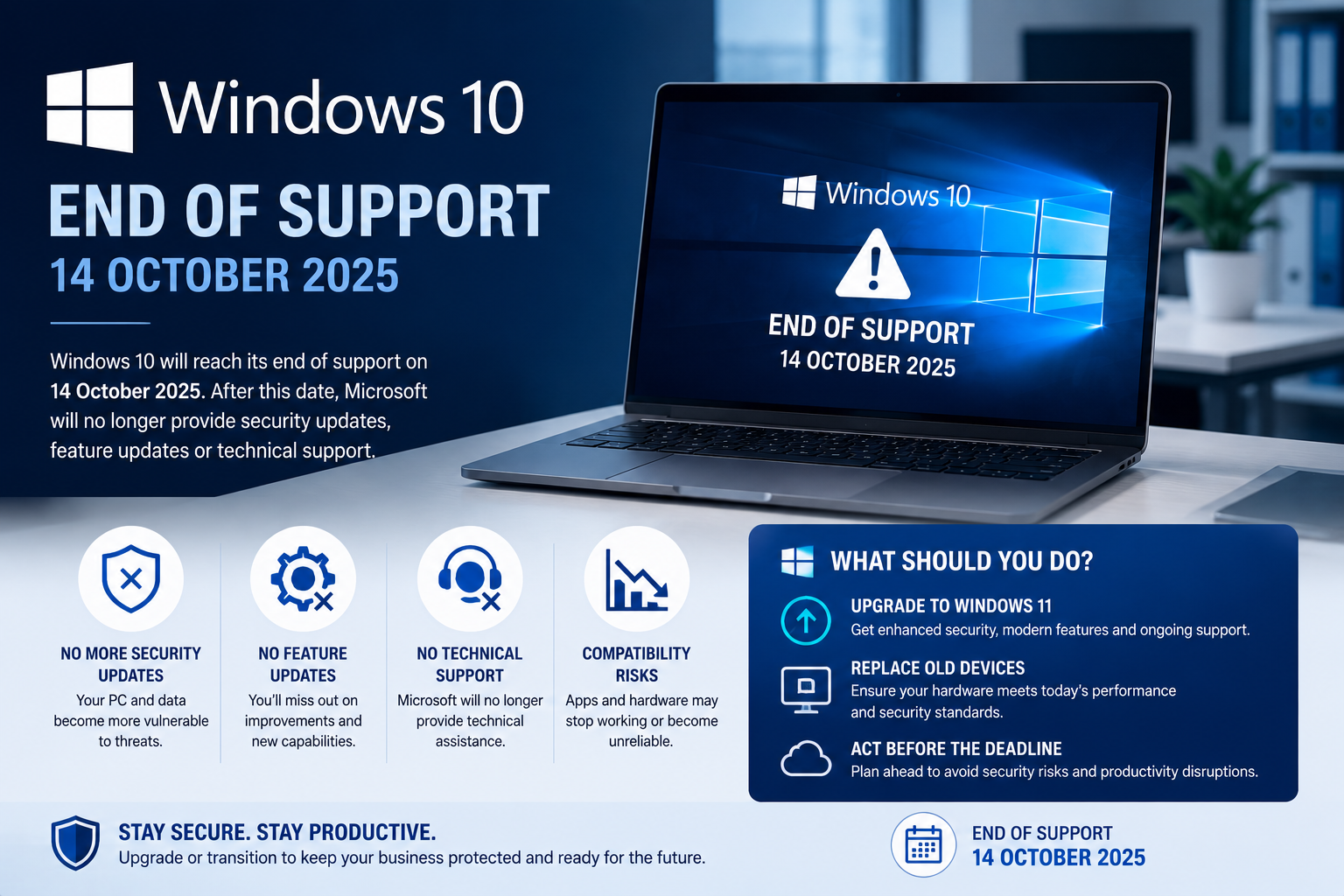
Microsoft ended standard support for most Windows 10 editions on 14 October 2025. PCs running Windows 10 can continue to operate, but they no longer receive normal security updates, feature updates or technical support unless they qualify for and are enrolled in an Extended Security Updates programme.
For businesses that still operate Windows 10 devices, the issue is no longer whether a refresh should be considered. The priority is deciding which computers must be replaced first, which can be upgraded and whether any systems require temporary extended protection.
A well-planned refresh can reduce security exposure, avoid rushed purchases and improve employee productivity without replacing every device at once.
Why Windows 10 End of Support Matters
An unsupported operating system creates increasing operational and security risk.
Although antivirus software, firewalls and other security controls remain useful, they cannot fully replace operating-system security updates. Newly discovered vulnerabilities may remain uncorrected, making unsupported devices more difficult to protect and justify within a business environment.
The risk may be greater for computers that:
- Access customer or financial information
- Connect to cloud services
- Support remote working
- Run business-critical applications
- Are used by administrators
- Operate outside a protected office network
- Must meet regulatory or customer security requirements
Businesses should therefore treat Windows 10 migration as part of their wider hardware lifecycle and security planning rather than as a simple software upgrade.
Start With a Complete Device Inventory
Before purchasing new computers, identify every Windows device in the organisation.
The inventory should include:
- User or department
- Device manufacturer and model
- Serial number or asset tag
- Current Windows edition
- Processor
- Installed memory
- Storage type and capacity
- Device age
- Warranty status
- Installed business applications
- Windows 11 compatibility
- Physical condition
- Current performance issues
Include laptops used by remote employees, shared computers, reception systems, warehouse terminals and spare devices.
Older computers are often overlooked because they support only one specialised task. These devices can still create risk if they remain connected to the business network.
Check Which PCs Can Run Windows 11
Not every Windows 10 computer needs to be replaced.
Some systems may support Windows 11 through a software upgrade, provided that they meet Microsoft’s hardware requirements and remain in suitable condition.
Compatibility should be checked using approved Microsoft tools and the manufacturer’s documentation. Microsoft advises users to review Windows Update or use its PC Health Check application to assess eligibility.
A compatible device may still be a poor upgrade candidate if it has:
- A slow mechanical hard drive
- Insufficient memory
- A damaged battery
- Poor physical condition
- Frequent hardware faults
- Limited remaining warranty
- Inadequate performance for current applications
The decision should consider both technical eligibility and the expected remaining useful life of the computer.
Divide Devices Into Clear Groups
After completing the inventory, place each computer into an action group.
Upgrade and Retain
These devices meet Windows 11 requirements, perform well and have sufficient remaining service life.
They may need only:
- Operating-system upgrade
- Firmware updates
- Driver updates
- Application compatibility testing
- Additional memory
- Solid-state storage
Upgrade After Hardware Improvement
Some compatible computers can remain useful after a targeted upgrade.
For example, replacing a hard drive with an SSD or increasing memory may improve performance enough to extend the device’s lifecycle.
The upgrade cost should still be compared with the price and expected lifespan of a replacement PC.
Replace
Replacement is usually more practical when the device:
- Does not support Windows 11
- Is already near the end of its useful life
- Has poor performance
- Requires several component upgrades
- Has no remaining warranty
- Cannot reliably run required applications
- Has a damaged chassis, battery or display
Retain Temporarily With Additional Protection
Some Windows 10 computers may need to remain operational temporarily because of budget, application compatibility or specialist hardware dependencies.
Microsoft’s Extended Security Updates programme provides eligible organisations with critical and important security updates for enrolled Windows 10 devices after standard support ends. It is intended as a temporary transition measure rather than a permanent replacement for migration.
Prioritise Devices by Business Risk
A phased refresh should replace the highest-risk computers first.
Priority should normally be given to devices that:
- Cannot run Windows 11
- Access sensitive or regulated information
- Are used by executives or administrators
- Support customer-facing operations
- Are used for remote access
- Have frequent reliability problems
- Run without current warranty coverage
- Affect several employees when unavailable
A lightly used training-room computer may be less urgent than a finance laptop or a PC controlling an important operational system.
This approach allows the business to reduce its greatest exposure before replacing lower-risk equipment.
Review Application Compatibility
A computer may support Windows 11 while an important application does not.
Before upgrading or replacing large numbers of devices, identify:
- Business applications
- Browser-based systems
- Printer and scanner software
- Security tools
- VPN clients
- Accounting packages
- Design or engineering software
- Device drivers
- Legacy databases
- Specialist peripherals
Confirm whether each application is supported on Windows 11 and whether a newer version or licence is required.
Test critical applications on a small number of devices before starting a wider deployment.
This pilot stage can reveal problems with authentication, printing, file access, drivers and user permissions before they affect the entire organisation.
Define Standard PC Configurations
A refresh is easier to manage when the business limits the number of computer configurations it purchases.
Instead of selecting a different model for every employee, define a small number of standard profiles.
General Office PC
Suitable for email, web applications, documents, spreadsheets and video meetings.
Advanced Business PC
Suitable for employees who use larger spreadsheets, multiple applications, data tools or more demanding business software.
Professional Workstation
Suitable for engineering, design, media production, development, analytics or other processor- and graphics-intensive work.
Standardisation can simplify:
- Procurement
- Software deployment
- Support
- Spare-device management
- Driver maintenance
- Docking stations and chargers
- Warranty administration
- Future replacement planning
Each configuration should include enough performance capacity for the expected working life of the device.
Choose Specifications for Future Needs
Buying only the minimum required specification can result in another premature refresh.
For most business users, important considerations include:
- Current-generation business processor
- Sufficient memory for multitasking
- Solid-state storage
- Hardware security features
- Reliable wireless connectivity
- Suitable ports
- External-monitor support
- Business-grade warranty
- Repairable or replaceable components where practical
The appropriate configuration depends on the workload.
Employees working mainly with browser-based applications may need modest specifications, while users handling large datasets, virtual machines or creative software require considerably more capacity.
The objective is not to buy the most powerful device available. It is to avoid a configuration that becomes restrictive before the expected replacement date.
Decide Between Laptops and Desktops
A hardware refresh is also an opportunity to reconsider device types.
Laptops are often preferred for:
- Hybrid working
- Business travel
- Flexible seating
- Continuity during office disruption
- Employees working between locations
Desktop computers may remain suitable for:
- Fixed workstations
- Reception areas
- Production environments
- Shared workspaces
- Roles requiring extensive internal expansion
- Locations where mobility is unnecessary
A laptop deployment may also require docking stations, monitors, keyboards, chargers and suitable carrying cases.
These accessories should be included in the refresh budget rather than treated as unexpected additional costs.
Budget for the Complete Deployment
The purchase price of each computer is only one part of the refresh cost.
The project budget may also need to include:
- Windows licences
- Memory or storage upgrades
- Docking stations
- Monitors
- Keyboards and mice
- Application licences
- Data migration
- Device configuration
- Deployment labour
- User support
- Warranty upgrades
- Secure disposal of old equipment
- Temporary replacement devices
Calculate the cost per complete workplace rather than comparing computer prices alone.
A cheaper device may create higher long-term costs if it has a shorter warranty, limited upgradeability or insufficient performance.
Use a Phased Refresh Schedule
Replacing every PC simultaneously may create unnecessary pressure on the budget and IT team.
A phased programme can divide the work by:
- Department
- Office location
- Device age
- Business risk
- Warranty expiration
- Compatibility status
- Quarter or financial period
For example, the business might begin with incompatible and high-risk systems, then replace older compatible devices as warranties expire.
A phased approach also allows lessons from the first deployment group to improve later stages.
However, the schedule should have a defined completion date. An open-ended refresh can leave unsupported devices in operation much longer than intended.
Prepare a Deployment Process
Each replacement should follow a consistent procedure.
A typical process may include:
- Confirming the assigned user and device
- Recording the existing configuration
- Backing up required data
- Preparing the new PC
- Installing updates and security tools
- Installing approved applications
- Applying company policies
- Migrating user files and settings
- Testing access to business systems
- Recording the new asset information
- Collecting the old device
- Providing user guidance
Using a standard build or device-management platform can reduce configuration differences and deployment errors.
Protect Business Data During Migration
Data migration should be planned before old computers are collected.
Identify whether files are stored:
- Locally on the device
- On a company file server
- In Microsoft 365 or another cloud platform
- In browser profiles
- Inside specialist applications
- On removable storage
Do not assume that every business file is already synchronised or backed up.
Before wiping an old computer, confirm that required files, browser data, encryption recovery information and application settings have been transferred successfully.
Plan for Secure Data Sanitisation
Old computers may contain customer information, employee records, credentials and confidential business files.
Deleting files or reinstalling Windows may not provide sufficient data protection.
The retirement process should include:
- Asset verification
- Removal from device-management systems
- Removal from user accounts
- Secure data erasure
- Erasure records or certificates where required
- Physical destruction of storage when secure reuse is not possible
- Environmentally responsible recycling
- Controlled resale or donation
Devices intended for resale or reuse should be tested and sanitised through a documented process.
This protects business information while allowing suitable equipment to retain value.
Consider Extended Security Updates Carefully
Extended Security Updates can provide additional transition time for eligible Windows 10 devices, but they should not become a reason to postpone planning.
ESU focuses on qualifying security updates. It does not turn Windows 10 back into a fully supported, modern platform, and Microsoft presents it as a way to reduce risk while organisations complete their transition.
It may be appropriate for:
- Devices awaiting scheduled replacement
- Systems dependent on a legacy application
- Specialist equipment with delayed compatibility
- Computers that cannot be migrated before a fixed project date
Every device retained under ESU should have an assigned replacement or remediation date.
Avoid Common Refresh Mistakes
Replacing Devices Without an Inventory
This can lead to duplicate purchases, missed systems and unclear priorities.
Upgrading Every Compatible Computer
Compatibility does not mean the device is worth retaining. Age, condition and performance still matter.
Buying Only Minimum Specifications
Low-capacity devices may create productivity problems and require replacement sooner.
Ignoring Accessories
Docking stations, monitors, adapters and chargers can materially increase project cost.
Skipping Application Testing
A successful Windows installation does not guarantee that all business applications and peripherals will work correctly.
Delaying Data Disposal
Old computers stored indefinitely can create security, compliance and asset-management problems.
Treating ESU as a Permanent Solution
Extended updates provide temporary protection, not a long-term hardware strategy.
A Practical PC Refresh Checklist
Before starting the project, confirm:
- Has every Windows 10 device been identified?
- Which computers support Windows 11?
- Which compatible devices remain worth upgrading?
- Which devices create the greatest security or operational risk?
- Have critical applications been tested?
- Are standard user configurations defined?
- Are accessories included in the budget?
- Is the deployment divided into manageable phases?
- Is user data backed up and migrated?
- Is each new asset recorded?
- Will old storage be securely erased?
- Do temporarily retained devices require ESU?
- Does every retained Windows 10 PC have a planned retirement date?
- Is there a clear completion date for the project?
Final Recommendation
Begin with a complete inventory and separate devices into upgrade, improve, replace and temporarily retain groups.
Replace incompatible and high-risk systems first. Upgrade compatible PCs only when their condition, performance and remaining lifecycle justify the work.
Use standard configurations, test essential applications and budget for the complete deployment, including accessories, migration, support and secure disposal.
Extended Security Updates can reduce risk for devices that cannot be replaced immediately, but they should support a defined migration plan rather than replace one.
Ila Express supplies business desktops, laptops, workstations, components and deployment-ready hardware for phased PC refresh projects.
Contact Ila Express to plan a practical business PC refresh based on device compatibility, user requirements and available budget.